
Processing Mesoscopic Imaging Data with DataViewer
Mesoscopic optical imaging is a versatile technique for studying brain activity. By leveraging the intrinsic optical properties of brain tissue, or reporters such as genetically encoded calcium indicators (GECIs), it can detect distinct signal sources across large areas of the mouse cortex. With a single device, researchers can measure a wide range of neurovascular features. For example, calcium, intrinsic and laser speckle imaging can be performed individually or simultaneously to reveal neuronal and vascular dynamics and their interactions.
The analysis of these signals, however, is rarely done in a single step. A typical study involves importing raw camera files, inspecting image time series, filtering and normalizing signals (ΔF/F or ΔR/R), and correcting for hemodynamics. Researchers then align sessions, define regions of interest (ROIs), and extract their time courses for final group analysis.
Several open-source software packages exist for imaging analysis, but most are dedicated to macroscopic (e.g. fMRI) or specific microscopy techniques (e.g. two-photon imaging). However, tools for mesoscopic imaging are not as widely available. A large proportion of published resources that do exist often focus on a single type of experiment or a single signal source, such as calcium imaging. They are also frequently distributed as functions or scripts, which can be intimidating for researchers, especially students without coding experience. Once combined into custom workflows, these scripts also become hard to document, share and reproduce.
In order to bridge that gap, we developed the Universal mesoscopic Imaging Toolbox (umIT; de Souza et al. 2025), designed to make the analysis of mesoscopic imaging data accessible to a wide audience of researchers of all backgrounds. In this blog post, we present the latest version of the toolbox, with a focus on DataViewer, its application for visualizing and processing widefield imaging data.
Introducing DataViewer

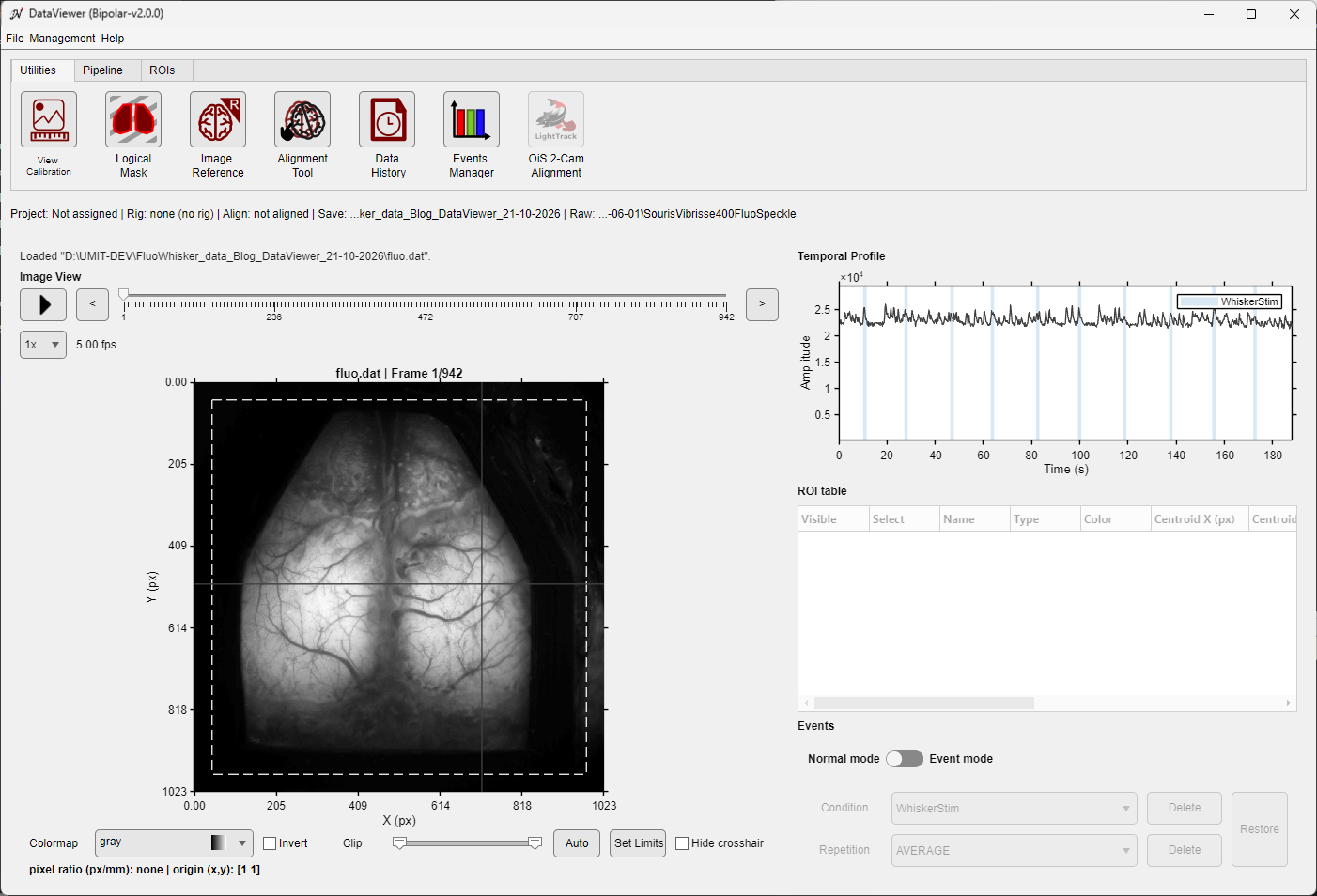
DataViewer is the main application of the umIT toolbox. It is designed to allow researchers explore and process mesoscopic imaging data through a graphical interface. In one window, it imports recordings, displays image time series and their temporal signals, runs processing pipelines, and creates and measures ROIs.
DataViewer is intended for low- to medium-throughput experiments, where recordings are explored and processed individually or in batches. The toolbox supports different experimental designs, such as resting-state recordings and event-triggered averages and provides tools to organize each project’s metadata alongside its data.
DataViewer analysis pipeline provides a portfolio of commonly used processing algorithms for widefield imaging data. Users also can create custom functions which can be used in DataViewer by following some steps that are provided in the toolbox on-line documentation.
In this blog post, we showcase the use of DataViewer with a typical experiment of calcium imaging with sensory stimulation (session using umIT Bipolar v2.0.0, the latest release).
Example Case: from raw recording to ROI signals
The recording
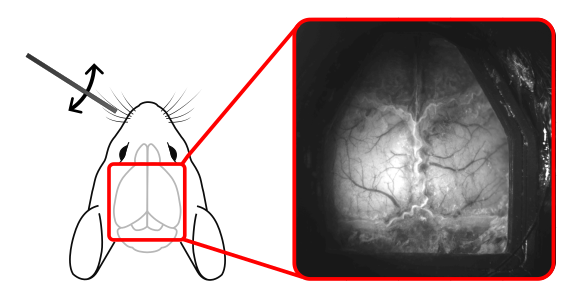
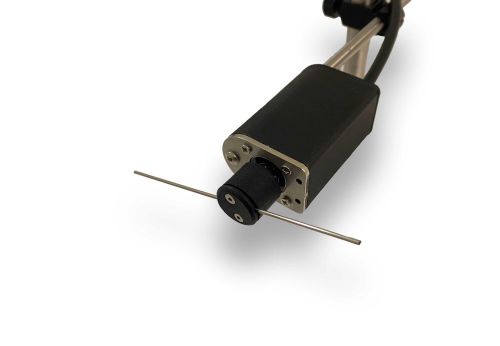
In this example, we imaged a mouse expressing the calcium indicator GCaMP6s in cortical neurons. The left whisker pad was stimulated with a whisker stimulation device for about 1.5 s, and the stimulation was repeated 10 times.
Calcium, intrinsic and speckle signals were acquired simultaneously with the LightTrack OiS200 modular optical imaging system, using interleaved multi-color illumination at 5 Hz per channel. Here, we will showcase the processing of the fluorescence channel.
Data processing
Importing the data
The raw recording from the imaging system (LightTrack OiS200) is imported directly into DataViewer, which creates one data file per imaging channel. Each file carries the information needed to read it, such as image size and frame rate.
Detecting the stimulation events
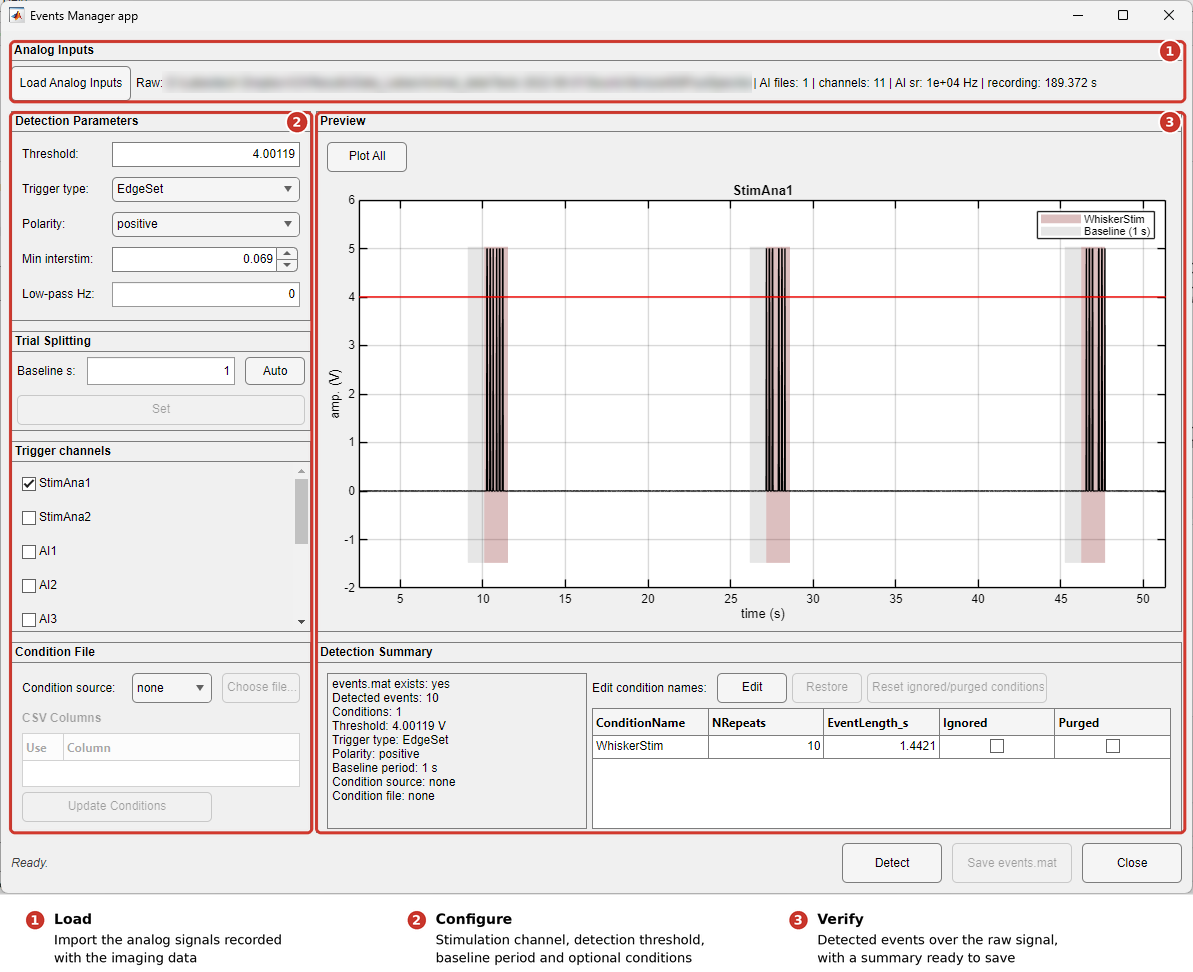
Next, the onset of each whisker stimulation is detected so that the imaging data can later be aligned on the stimuli. In this recording, DataViewer finds the 10 stimulation trials.
Exploring the raw signals
Before any processing, we explore the raw fluorescence signal. Clicking on different pixels displays their time course, which helps verify that the signal level is adequate across the brain surface. To help looking for artifacts such as movements, one can play the recording at different speeds.
At this stage, we also draw a logical mask to exclude unwanted regions, such as areas outside the cranial window or over large blood vessels. Masked pixels are left out of the subsequent processing steps and ROI creation.
Exploring the raw fluorescence signal. Clicking on pixels displays their time course; a logical mask is then drawn to exclude regions outside the cortex from further analysis.
Processing the data
The proposed analysis pipeline consists of three steps:
- Split data into trials
- Normalize fluorescence signal relative to baseline (ΔF/F).
- Apply a spatial Gaussian filter to reduce pixel noise.
The result is an event-aligned ΔF/F dataset in which the response to whisker stimulation can be followed trial by trial.
Building and running the analysis pipeline in the Pipeline Manager: splitting the data into trials, normalizing to baseline (ΔF/F) and spatial filtering. The resulting average response map shows the activated region in the right barrel cortex.
Creating an ROI and exporting its signal
To quantify the response, an ROI is created by applying a threshold to the response map. As expected, the responsive region appears in the right hemisphere, in the barrel cortex contralateral to the stimulated whiskers.
Finally, the ROI’s average time course can be exported as a CSV file for subsequent analysis in any spreadsheet or statistics software.
Creating an ROI by thresholding the response map at its peak, then saving the ROI or exporting its time course to a CSV file.
Summary and Insights
Mesoscale imaging studies depend not only on good acquisitions but also on analysis workflows that are consistent, documented and reproducible. When each step lives in a separate script, keeping track of what was done to the data becomes a burden of its own.
With Bipolar v2.0.0, DataViewer brings import, exploration, processing and ROI analysis into a single window.
To try DataViewer, visit the umIT GitHub repository and its documentation website, where you will find a Getting Started guide and the full documentation.
Products Used

References
de Souza, Bruno Oliveira Ferreira, Montana Samantzis, Catherine Albert, Samuel Belanger, Jean-Francois Bouchard, Matilde Balbi, and Matthieu P. Vanni. 2025. “Bridging the Gap: umIT Makes Complex Imaging Data Accessible to Scientists of All Backgrounds.” Neurophotonics 12 (S1): S14616. https://doi.org/10.1117/1.NPh.12.S1.S14616.
Don’t miss out! Subscribe to our newsletter for the latest blog updates.
We hope you found this post helpful! If you have any questions or need further information, feel free to reach out. We’re here to help!